How to Delete or Remove a Repost on TikTok (2026)
Open the reposted video, tap Share, then tap Remove Repost. Learn how to delete or remove a TikTok repost on iPhone, Android, or desktop.
Quick Answer: How to Delete or Remove a Repost on TikTok
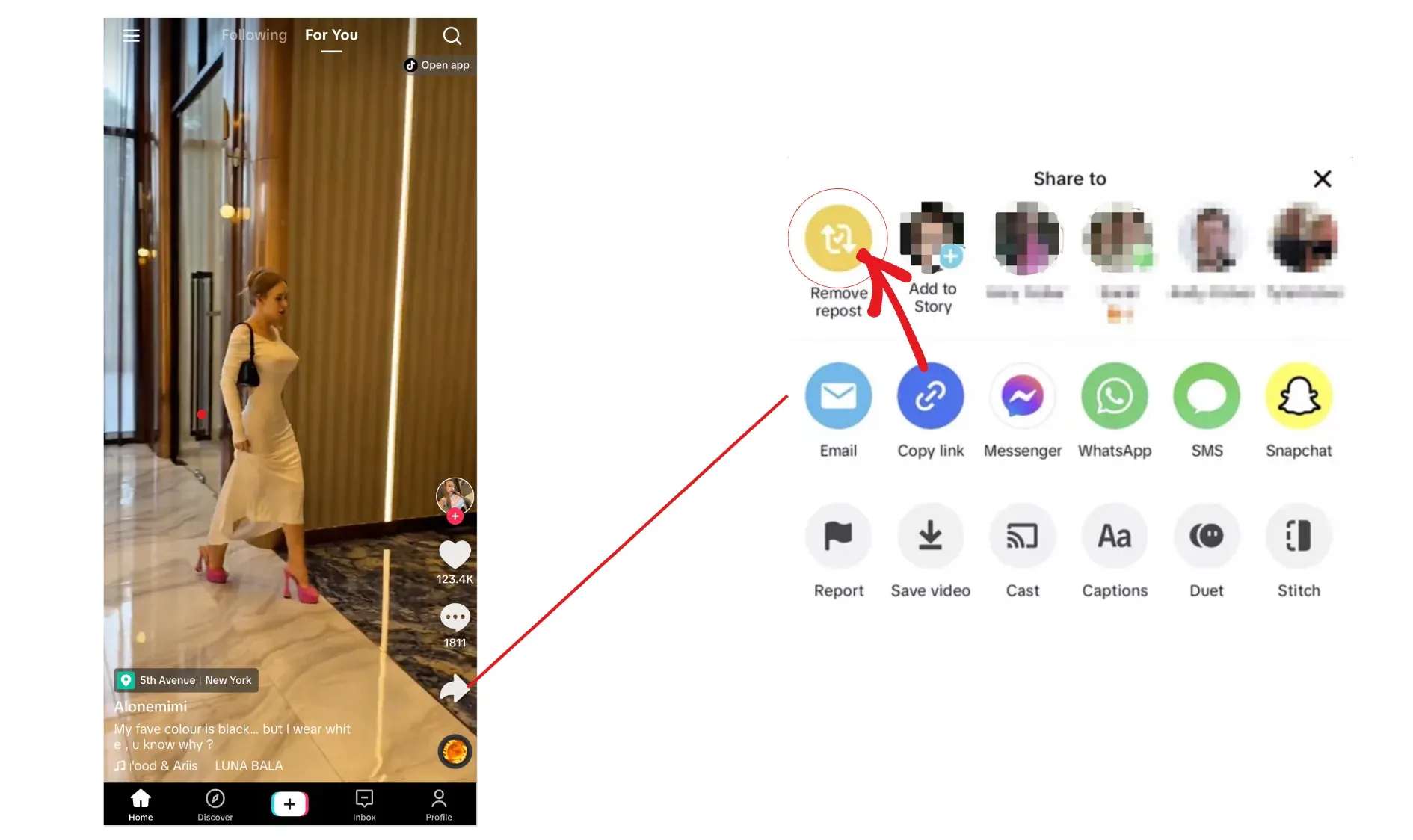
To delete a repost on TikTok, open the reposted video from your Reposts tab, tap Share, then tap Remove Repost. TikTok removes the repost from your profile right away, and the original creator's video stays untouched.
The same basic flow works on iPhone, Android, and TikTok desktop. TikTok may call the action Remove Repost, Unrepost, or simply hide it inside the Share menu, depending on your app version.
Before You Start: Find the Reposts Tab
Most users need to start from their profile:
- Open TikTok.
- Tap Profile in the bottom-right corner.
- Look for the Reposts tab with the ↻ icon.
- Tap the reposted video you want to remove.
If you do not see the Reposts tab, update TikTok first. Some accounts also hide repost history under Activity Center or only expose it on TikTok.com.
How to Delete a Repost on TikTok on iPhone or Android
Use this method when you want to remove one repost from the TikTok mobile app:
- Open TikTok and go to your Profile (bottom-right icon).
- Tap the Reposts tab (↻ icon).
- Open the reposted video you want to delete.
- Tap the Share icon.
- Tap Remove Repost.
- Wait for the confirmation toast. The repost should disappear from your profile.
Time required: About 5-10 seconds per repost.
How to Remove a Repost on TikTok Desktop
If you prefer TikTok.com, use the desktop version:
- Go to TikTok.com and sign in.
- Click your profile photo in the top-right corner.
- Open your Profile.
- Click the Reposts tab.
- Open the reposted video.
- Use the Share or overflow menu and choose Remove Repost.
If the desktop UI does not show the button, try mobile for a single repost or use ClearTok for a larger cleanup.
Faster Shortcut: Long-Press a Repost
Some TikTok app versions let you skip the Share menu:
- Open your Reposts tab.
- Long-press the repost thumbnail.
- Tap Remove Repost in the context menu.
This method is faster when you need to delete several reposts one by one.
What Happens After You Remove a Repost?
Removing a repost only removes your share of someone else's video. It does not delete the original post.
| What changes | What stays the same |
|---|---|
| The repost disappears from your Reposts tab | The original video remains on the creator's profile |
| Your profile looks cleaner | The creator's video, likes, comments, and views remain |
| TikTok stops treating that repost as part of your visible profile | Your own uploaded videos are untouched |
| You can repost the same video again later | TikTok does not notify the original creator |
Why Can't I Find the Remove Repost Button?
If you cannot remove a repost, check these first:
- You opened the original video from search or FYP - go through your own Reposts tab instead.
- TikTok is outdated - update the iPhone or Android app.
- The Reposts tab is missing - check TikTok.com or Activity Center.
- The button label changed - some versions say Unrepost instead of Remove Repost.
- The app cache is stale - force-close TikTok and reopen it after removing the repost.
- The original video was deleted or made private - the repost may disappear only after TikTok refreshes your profile.
Delete One Repost vs Delete All Reposts
Use TikTok's built-in Remove Repost button when you only need to delete one or a few reposts. It is free, official, and takes a few seconds per video.
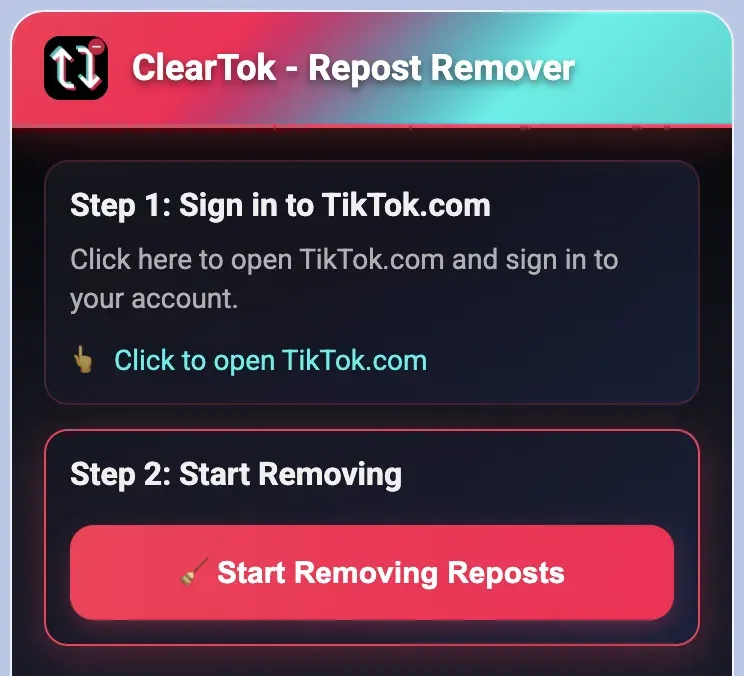
If you have dozens, hundreds, or thousands of reposts, TikTok still does not offer a native Delete All Reposts button. In that case, use the dedicated Remove All Reposts on TikTok tool page. ClearTok can remove reposts in bulk on Chrome, Edge, iPhone, iPad, and Android without asking for your TikTok password.
Repost vs Unrepost vs Remove Repost
People use different words for the same action:
| Search phrase | Meaning |
|---|---|
| Delete a repost on TikTok | Remove a video you previously reposted |
| Remove repost on TikTok | Same action as delete a repost |
| Unrepost on TikTok | Same action, often used when TikTok labels the button differently |
| Clear repost on TikTok | Usually means remove one repost or clean the whole Reposts tab |
For a single video, use the Share -> Remove Repost flow. For your whole repost history, use the bulk cleanup page linked above.
Repost vs Stitch vs Duet
These TikTok actions are easy to confuse:
| Type | What it does | How to undo it |
|---|---|---|
| Repost | Shares another creator's video to your profile/Reposts tab | Tap Share -> Remove Repost |
| Stitch | Creates your own video using part of another video | Delete your stitched video |
| Duet | Creates your own side-by-side video | Delete your duet video |
Only reposts use the Remove Repost button. Stitches and duets are your own published videos, so they must be deleted like normal TikTok uploads.
Frequently Asked Questions
How do I delete a repost on TikTok? Open your profile, tap the Reposts tab, open the reposted video, tap Share, then tap Remove Repost.
How do I remove a repost on TikTok if the button is missing? Open the repost from your own Reposts tab, not from the FYP or search. If the button still does not show, update TikTok, try TikTok.com, or look for a button labeled Unrepost.
Will the creator know I removed my repost? No. TikTok does not notify creators when you remove or unrepost their video.
Does removing a repost delete the original video? No. The original video remains on the creator's profile with its existing likes, comments, and views.
Can I delete all reposts at once on TikTok? Not inside TikTok's native app. TikTok only supports one-by-one removal. Use ClearTok's bulk repost remover if you want to remove all TikTok reposts at once.
Why do reposts still show on my phone after deleting? The TikTok mobile app caches profile data. Force-close the app and reopen it. In some cases, TikTok.com updates first and the mobile app catches up later.
Is it safe to use a third-party tool to remove reposts? Yes, if the tool runs locally and does not ask for your TikTok password. ClearTok uses your active TikTok session and automates the same Remove Repost action you would do manually.
Summary
To delete or remove a repost on TikTok, open the reposted video from your Reposts tab, tap Share, then tap Remove Repost. The action is silent, does not delete the original video, and works on iPhone, Android, and desktop.
- One repost: Use TikTok's built-in Remove Repost button.
- A few reposts: Repeat the same flow or use the long-press shortcut.
- Many reposts: Use ClearTok's Remove All Reposts on TikTok tool.
Remove all TikTok reposts with ClearTok
Related Guides
Ready to Try ClearTok?
Stop deleting reposts one by one. Get ClearTok and clean up your entire TikTok profile in minutes.
Browser Extension
Mobile App