
Is It Safe to Use Tools to Remove All TikTok Reposts?
Worried about safety when removing reposts? Learn how to choose a safe, browser-based tool and bulk delete TikTok reposts responsibly.
TL;DR (Safety Answer)
Is it safe to use a repost remover tool?
Yes, but only if you choose the right type of tool.
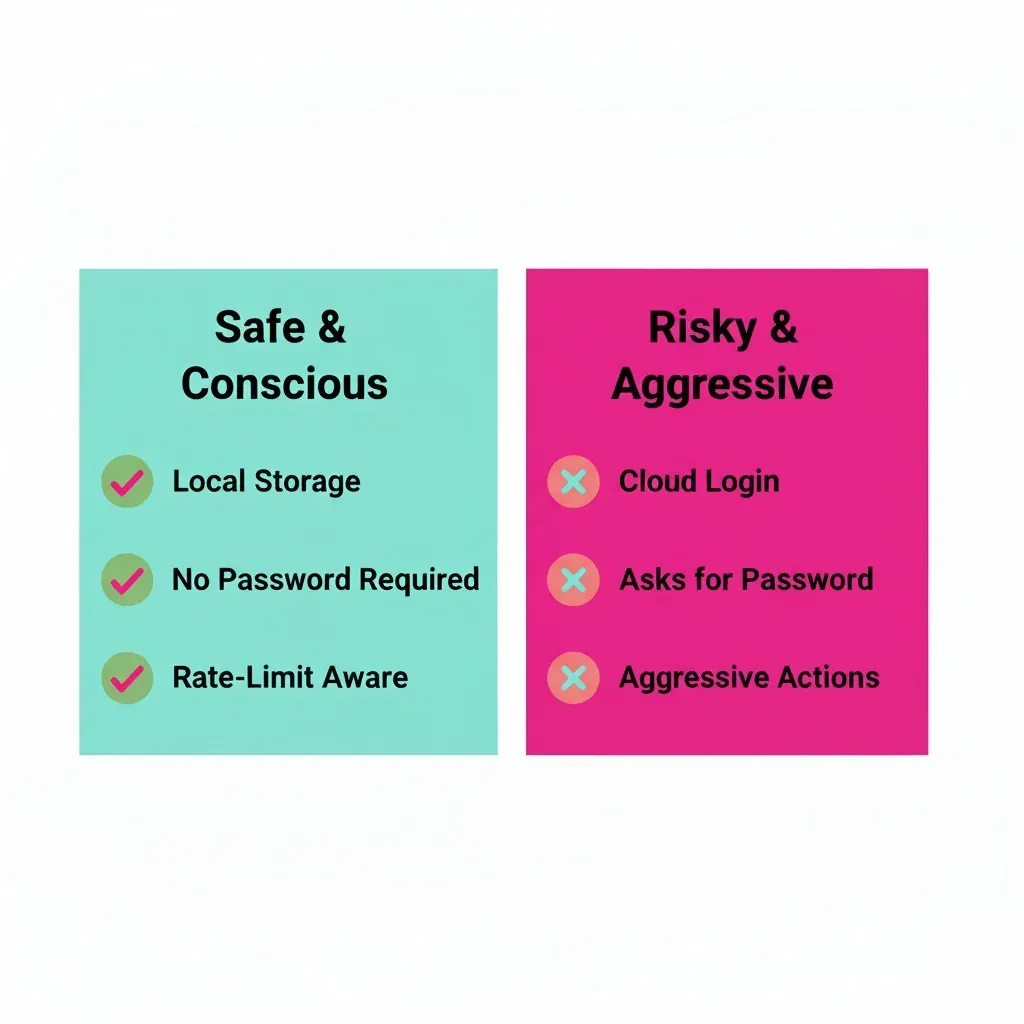
- ✅ SAFE: Browser extensions that run locally and do not ask for your password (e.g., ClearTok).
- ❌ UNSAFE: Mobile apps (APKs) or websites that require you to enter your TikTok login credentials.
Key Rule: If a tool asks for your TikTok password, it is not safe. If it runs in your browser while you are already logged in, it is generally safe.
Why people ask this
Reposts can pile up over time and make your profile look chaotic. Manually deleting them, one by one, is slow and error-prone. That's why "remove all reposts TikTok" and "delete all TikTok reposts" are popular searches. But before using any "TikTok repost remover," you should vet safety first.
What "safe" means in this context
"Safe" depends on three things:
Data & credentials – Are you asked for your TikTok password or any sensitive info? Safe tools don't.
Execution model – Does the tool run locally in your browser (you can see permissions) or ship your account data to a server? Local is safer.
Behavioral pacing – Does it use human-like delays and auto-pause to avoid aggressive actions that could trigger platform rate-limits?
Quick rule: if a tool needs your password or pushes actions from a remote server, skip it.
The Safety Checklist (Green Flags vs Red Flags)
| Check | Green flags (safer) | Red flags (avoid) |
|---|---|---|
| Credentials | No password required; works while you're already logged-in in your own browser | Asks for TikTok username/password; asks you to "log in" on a third-party site |
| Data flow | Runs 100% locally in the browser; no data leaves your device | Sends your cookies/session to a cloud service; vague about storage |
| Permissions | Minimal Chrome/Edge permissions; host permissions restricted to TikTok | Broad permissions or remote control domains you don't recognize |
| Pace & limits | Built-in human-like delays; auto-pause on rate-limits; clear progress & stop button | Blasts actions too fast; no backoff or pause logic |
| Transparency | Clear docs; change-log; exportable removal log | No docs; no versioning; zero visibility into what happened |
| Control | Start/stop anytime; can run per-tab; easy uninstall | Always-on; hard to stop; unclear uninstall steps |
How to verify a tool yourself (5-minute validation)
- Read the store page: check permissions and privacy note.
- Install & open with TikTok already logged-in in your browser. The tool should not request your password.
- Dry-run with a small batch (or watch the first few actions). Confirm it only touches the Reposts tab.
- Observe pacing: does it pause when the site limits actions?
- Review the log: can you see which reposts were removed? Exporting a log is a plus.
- Uninstall check: verify you can remove the tool cleanly.
Manual vs automated removal: the real-world trade-off
Manual: precise but slow. Deleting 200–500 reposts can take hours and is easy to abandon.
Automated in-browser: fast, repeatable, and—if paced—low risk. Ideal when you want to bulk delete TikTok reposts and move on.
A safer approach: browser-based, local, controlled
Tools that operate inside your browser session (no password, no cloud) are the sweet spot. For example, ClearTok is a free, browser-based helper that:
- Deletes all your TikTok reposts (not your original uploads) in one click
- Runs locally in your browser—no TikTok password required
- Uses human-like delays and auto-pause to respect site limits
- Provides an exportable log of what was removed
Tip: If you're cautious, start with 10-20 reposts. If the pacing and results look good, continue the full clean-up.
Step-by-step: how to delete all TikTok reposts safely
- Log in to TikTok on your desktop browser.
- Install and open a browser-based cleaner (e.g., ClearTok).
- Click Start. Keep the tab focused to let it work.
- If the site slows you down, let the tool auto-pause and resume.
- Review results and export the log for your records.
- Uninstall when done (optional) to keep your browser lean.
Limitations and common sense
- Always review TikTok's terms and use automation responsibly.
- Don't run mass actions across multiple accounts simultaneously.
- Keep your browser and extension versions up to date.
FAQ: "remove all reposts TikTok" (quick answers)
Q1. Is it safe to delete all TikTok reposts with a tool? A. It can be, if it's browser-based, password-free, and uses sane pacing with pause/backoff.
Q2. Will deleting reposts affect my original videos? A. Quality tools focus on the Reposts tab only. Always read the labels and test a small batch first.
Q3. Can I do this on mobile? A. Mobile typically requires manual deletion. Desktop + browser tool is faster and more reliable.
Q4. What if the UI changes? A. Choose a tool that updates regularly and provides a clear log so you can verify what happened.
Q5. What's the safest way to try it? A. Start small, watch the pacing, check the log, and stop anytime.
Conclusion
Using a tool to delete all TikTok reposts can be safe—provided you choose a local, browser-based solution that doesn't request your password and respects rate-limits. Follow the checklist above, test with a small batch, and you'll restore a clean, professional profile in minutes.
Ready to clean up in one click? Try ClearTok (free, browser-based, no password required).
Ready to Try ClearTok?
Stop deleting reposts one by one. Get ClearTok and clean up your entire TikTok profile in minutes.